---
title: "Standard Segment"
slug: "standard-segment"
updated: 2026-11-02T19:12:03Z
published: 2026-11-02T19:12:03Z
canonical: "help.dsp.samsungads.com/standard-segment"
---
> ## Documentation Index
> Fetch the complete documentation index at: https://help.dsp.samsungads.com/llms.txt
> Use this file to discover all available pages before exploring further.
# Standard Segment
The Standard Segment is a simple pixel and can be embedded on a web page directly or implemented using your [preferred tag manager](/v1/docs/standard-segment#implement-a-standard-tag). Each segment will have a different tag/pixel to implement.
Standard segments can optionally receive order-level conversion data (Order ID and Order Value) from the website when Revenue Tracking are enabled.
## Create a standard segment
1. In the left menu, click **Data** and select **Segments.**
You will then see the segment listings on the screen.

1. In the upper right-hand corner, click **+New Segment** and select **Standard Segment**.
2. Fill out the following form and click **Create** to finish.
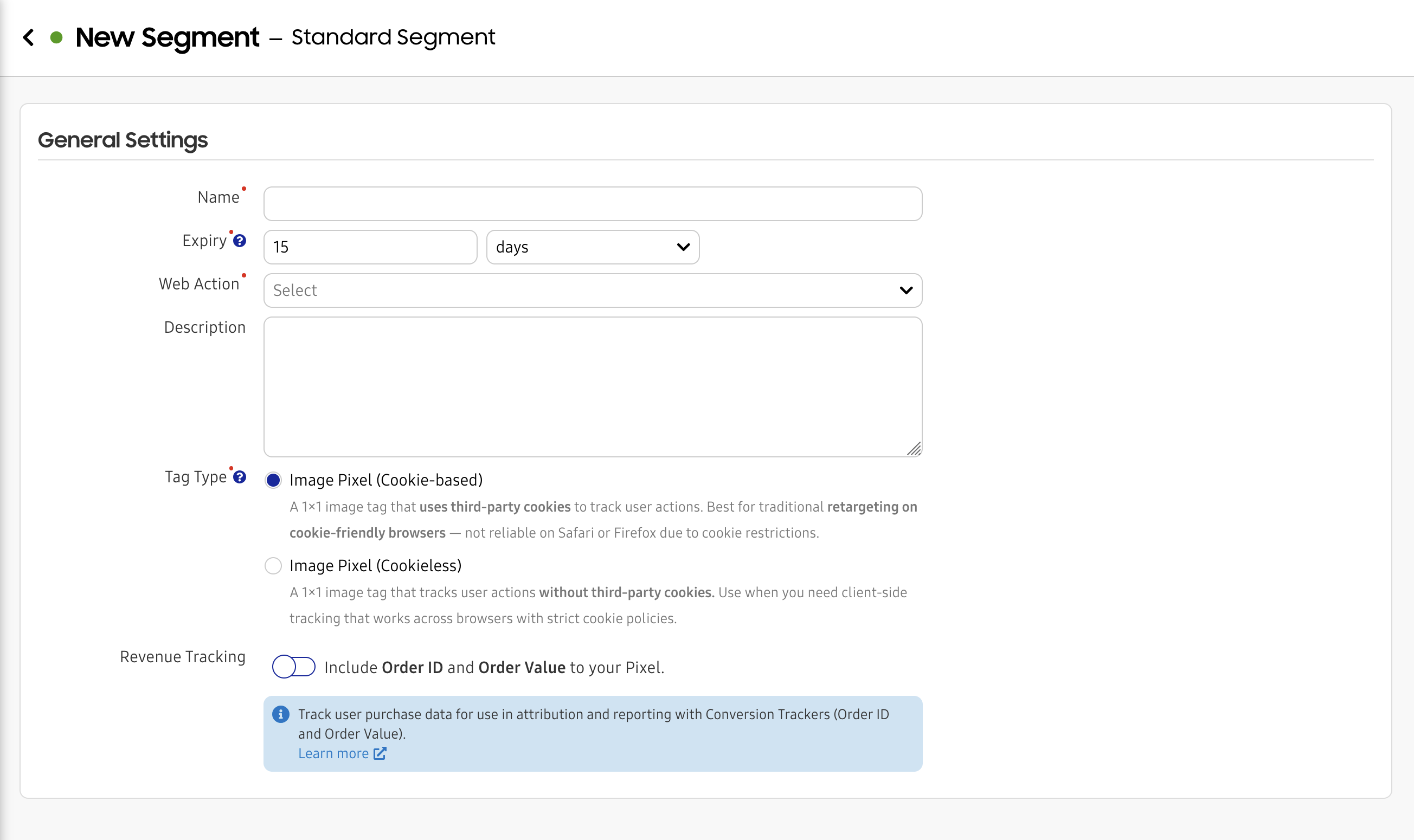
### General Settings
- **Name**: Enter a name for your segment.
- **Expiry**: Enter an expiry time for the retargeting. E.g.: if 15 days is selected, a user that has not been detected for a period of 15 days will no longer be included in the segment.
- **Description**: Enter a description of the segment.
### Tag Type Selection
Choose from two pixel version options:
| Tag Type | Description | Best For |
| --- | --- | --- |
| **Image Pixel (Cookie-based)** | A 1×1 image tag that uses third-party cookies for user identification. Works across all browsers with automatic fallback when cookies are unavailable. | Retargeting with maximum match rate, established workflows |
| **Image Pixel (Cookieless)** | A 1×1 image tag that identifies users without third-party cookies. Consistent tracking across all browsers, though may result in lower resolution data. | Websites with strict cookieless policies, privacy-first implementations |
Important
The tag type selection is immutable. Once created, the pixel version cannot be changed.
## Revenue Tracking (Optional)
Enable **Revenue Tracking** to include Order ID and Order Value parameters in your pixel:
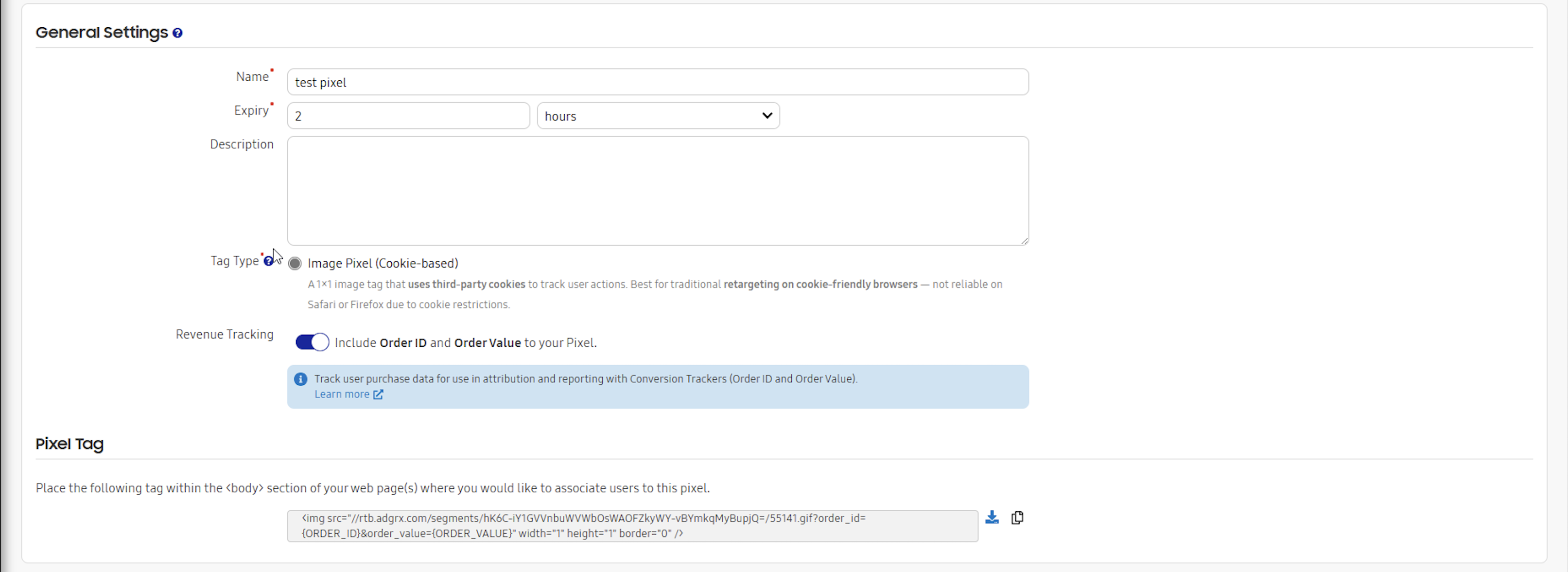
- **Order ID**: Unique identifier for each conversion/transaction.
- **Order Value**: Revenue value for ROAS calculation.
- **Always paired**: Order ID and Order Value must be enabled/disabled together.
- **Mutable**: Can be toggled on/off after pixel creation.
To track your customers' behavior more efficiently enable Revenue Tracking to include Order ID and Order Value parameters in your pixel.
### Copy or Download a Standard pixel/tag
1. On the segment row, click the three dots located in the *Actions* column.
2. Select **Copy Tag** to copy the tag to your clipboard.
3. Select **Download Tag** to download a .txt file containing the pixel/tag.
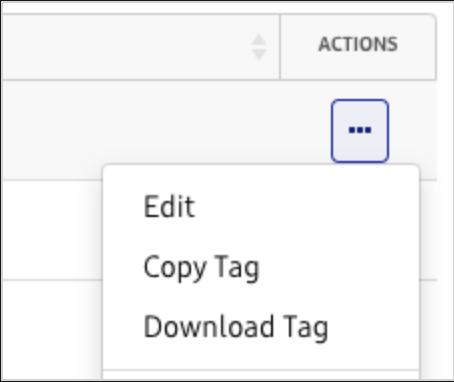
You can also download multiple pixels/tags in one .txt file by checking the checkbox of the pixels you want and then clicking the Download Selected Tags button that appears at the top of the listing.
## Implement a Standard tag
The Samsung DSP standard pixel can be placed directly on a web page on your website or in your preferred tag manager, such as Adobe Tag Manager or Google Tag Manager.
### Generated Segment Tag
Once created, you can view and copy the generated pixel tag from the pixel details page.

## Image Segment Examples
### Cookie-based (V1) Implementation
Here's an example of a cookie-based standard pixel tag.
#### Basic Implementation:
```
 ```
#### With Revenue Tracking:
```
 ```
### Cookieless (V2) Implementation
Here's an example of a cookieless standard pixel tag.
#### Basic Implementation:
```
 ```
#### With Revenue Tracking:
```
 ```
## Tag Manager Implementation
All pixel versions can be implemented through tag managers:
- Google Tag Manager: Use Custom Image or Custom HTML tags
- Adobe Tag Manager: Use Image Beacon or Custom Code
### JavaScript Implementation
In some cases, you might need to implement the pixel as JavaScript code:
#### Cookie-based Version:
```
var __SAMSUNG_DSP_PIXEL = new Image();
__SAMSUNG_DSP_PIXEL.src = "//rtb.adgrx.com/segment/XXXX/yyy.gif?order_id=ORDER_12345&order_value=149.99";
```
### Cookieless Version:
```
var __SAMSUNG_DSP_PIXEL = new Image();
__SAMSUNG_DSP_PIXEL.src = "//rtb.adgrx.com/segments_v2/XXXX/yyy.gif?order_id=ORDER_12345&order_value=149.99";
```
#### Button Implementation
While the best and most reliable way to call tags or pixels is directly on a page or via a tag manager, it is also possible to call our tag when the user clicks on a button.
**Without redirect or redirect that opens a new tab/window** If clicking the button does not redirect the user to another page or opens a new tab/window, the tag or pixel should be called correctly:
```
button
```
**With redirect in the same tab/window** If the button redirects the user to another page in the same tab/window, you need to prevent the default redirect temporarily:
```
button
```
## Revenue Tracking Parameters
When Revenue Tracking are enabled, you can pass order-level data:
### Parameters
- order_id (string): Unique identifier for the conversion/transaction
- order_value (float): Revenue value for ROAS calculation
#### Example Values
- order_id=ORDER_12345 or order_id=TRANS_ABC123
- order_value=149.99 or order_value=1299.00
**Legacy Parameter**: The previous AG_REV parameter is still supported but deprecated. Use order_value for new implementations.
## Data Parameters (Deprecated)
### Revenue (conversion)
Optionally, it is possible to pass in the "revenue" generated from a conversion into the standard segment tag. This allows Samsung DSP to report on conversion revenue.
To do so, simply add ?AG_REV= and the value of the conversion, as shown below.
```
 ```
## View Segments Activity (Reporting)
Click the three dots and select **Segments** under **Reports** or **Real-Time section**.
 ```
#### With Revenue Tracking:
```
 ```
### Cookieless (V2) Implementation
Here's an example of a cookieless standard pixel tag.
#### Basic Implementation:
```
 ```
#### With Revenue Tracking:
```
 ```
## Tag Manager Implementation
All pixel versions can be implemented through tag managers:
- Google Tag Manager: Use Custom Image or Custom HTML tags
- Adobe Tag Manager: Use Image Beacon or Custom Code
### JavaScript Implementation
In some cases, you might need to implement the pixel as JavaScript code:
#### Cookie-based Version:
```
var __SAMSUNG_DSP_PIXEL = new Image();
__SAMSUNG_DSP_PIXEL.src = "//rtb.adgrx.com/segment/XXXX/yyy.gif?order_id=ORDER_12345&order_value=149.99";
```
### Cookieless Version:
```
var __SAMSUNG_DSP_PIXEL = new Image();
__SAMSUNG_DSP_PIXEL.src = "//rtb.adgrx.com/segments_v2/XXXX/yyy.gif?order_id=ORDER_12345&order_value=149.99";
```
#### Button Implementation
While the best and most reliable way to call tags or pixels is directly on a page or via a tag manager, it is also possible to call our tag when the user clicks on a button.
**Without redirect or redirect that opens a new tab/window** If clicking the button does not redirect the user to another page or opens a new tab/window, the tag or pixel should be called correctly:
```
button
```
**With redirect in the same tab/window** If the button redirects the user to another page in the same tab/window, you need to prevent the default redirect temporarily:
```
button
```
## Revenue Tracking Parameters
When Revenue Tracking are enabled, you can pass order-level data:
### Parameters
- order_id (string): Unique identifier for the conversion/transaction
- order_value (float): Revenue value for ROAS calculation
#### Example Values
- order_id=ORDER_12345 or order_id=TRANS_ABC123
- order_value=149.99 or order_value=1299.00
**Legacy Parameter**: The previous AG_REV parameter is still supported but deprecated. Use order_value for new implementations.
## Data Parameters (Deprecated)
### Revenue (conversion)
Optionally, it is possible to pass in the "revenue" generated from a conversion into the standard segment tag. This allows Samsung DSP to report on conversion revenue.
To do so, simply add ?AG_REV= and the value of the conversion, as shown below.
```
 ```
## View Segments Activity (Reporting)
Click the three dots and select **Segments** under **Reports** or **Real-Time section**.