---
title: "Building HTML5 with Tumult Hype"
slug: "building-html5-with-tumult-hype"
updated: 2024-06-07T14:15:58Z
published: 2024-06-07T14:15:58Z
canonical: "help.dsp.samsungads.com/building-html5-with-tumult-hype"
---
> ## Documentation Index
> Fetch the complete documentation index at: https://help.dsp.samsungads.com/llms.txt
> Use this file to discover all available pages before exploring further.
# Building HTML5 with Tumult Hype
This page helps you build a HTML5 creative using [Tumult Hype](https://tumult.com/hype/).
## New Ad (from template)
A new file is automatically created when you open *Tumult Hype*.
1. Download the [adgear_html5.hypetemplate.zip](https://cdn.document360.io/287afab9-a086-4024-a782-6cbdb167f005/Images/Documentation/adgear_html5.hypetemplate.zip?sv=2026-02-06&spr=https&st=2026-11-10T16%3A35%3A03Z&se=2026-11-10T17%3A35%3A03Z&sr=c&sp=r&sig=YTNVd5s1IlahuybIuvK8ItSRhcjxSWl8db8LJAWZlsU%3D) file.
2. Unzip the `adgear_html5.hypetemplate.zip` file.
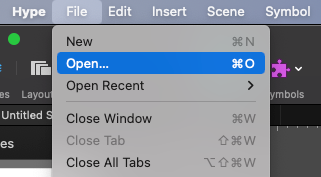
3. In *Tumult Hype*, click **File** and select **Open** to open the `adgear_html5.hypetemplate` file.
## New Ad (from scratch)
A new file is automatically created when you open *Tumult Hype*.
You can change the size of your ad by clicking on the *Scene* icon on the right panel. 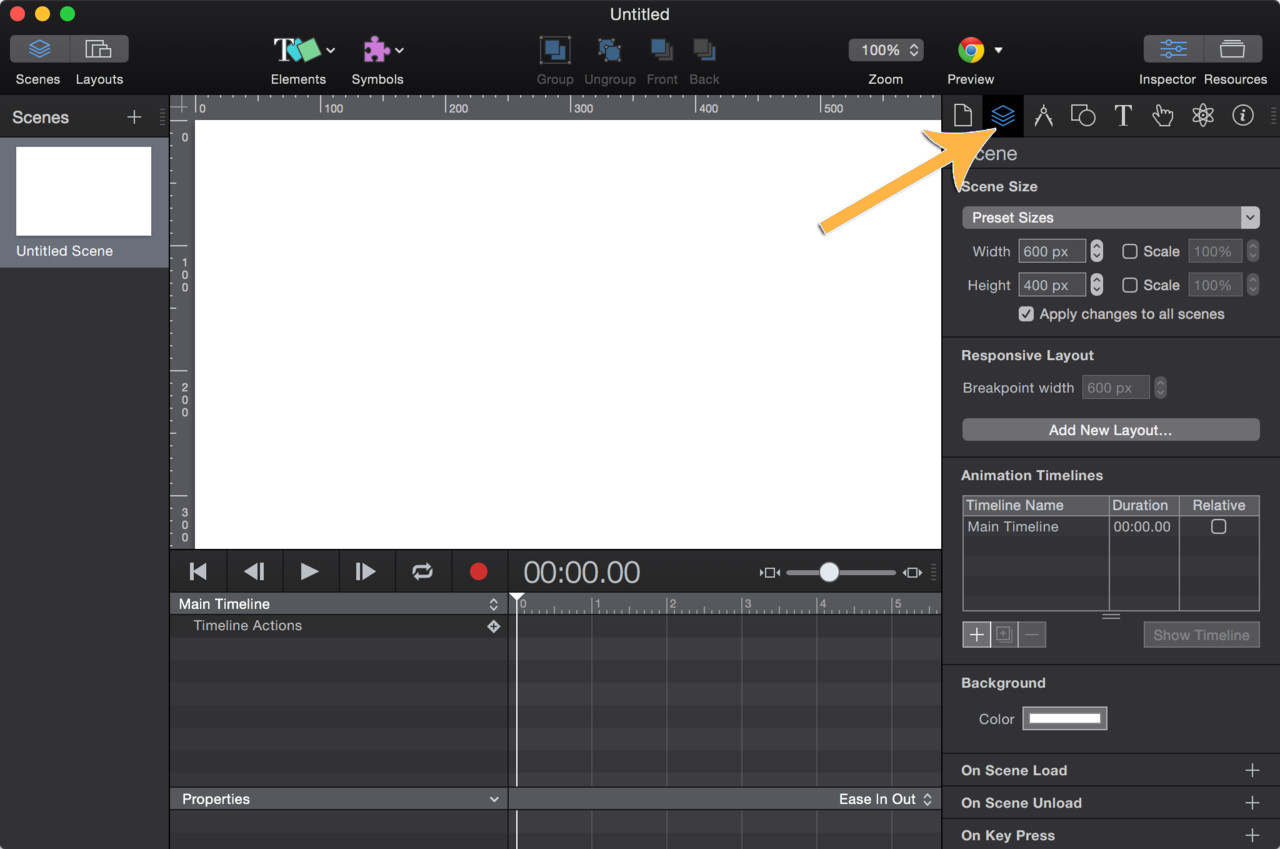
### Add the AdGear HTML5 API
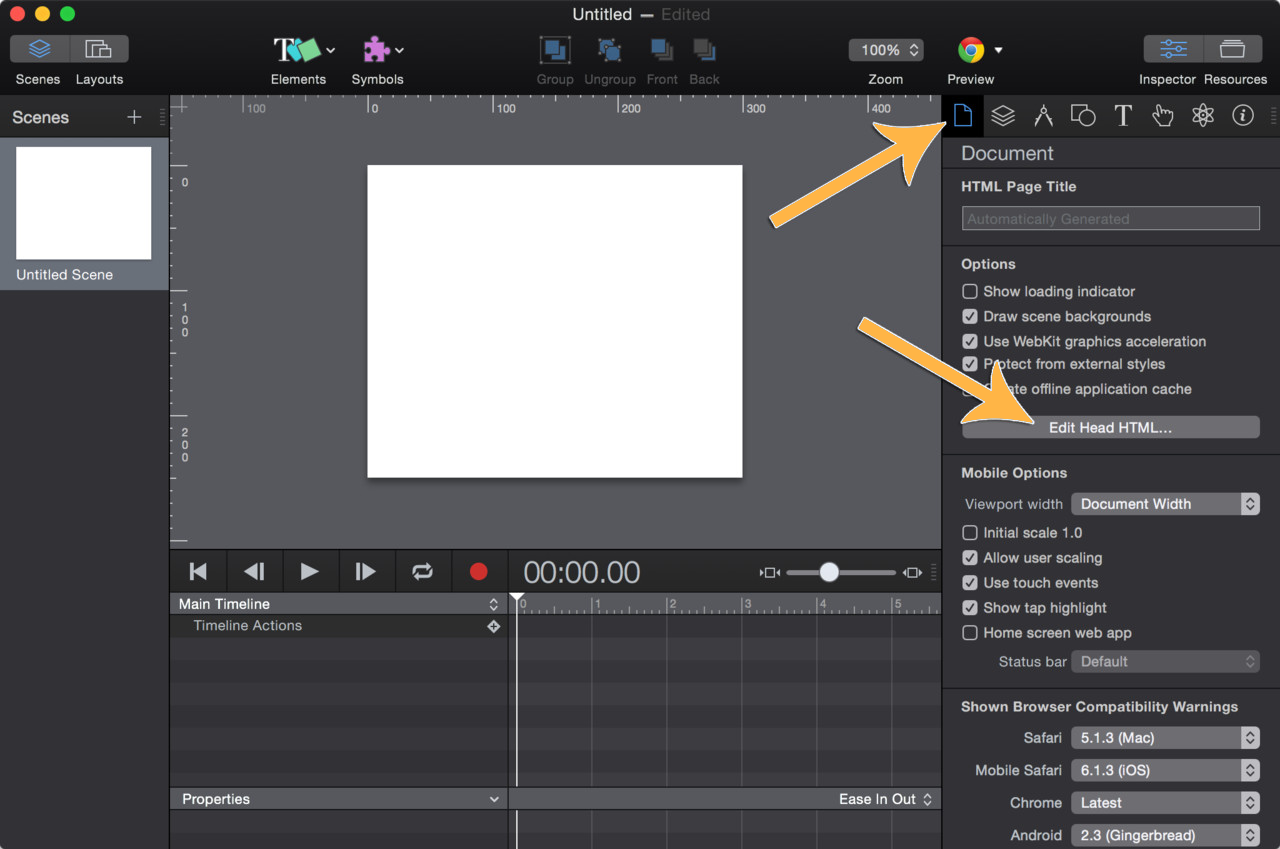
1. To add the reference to *AdGear HTML5 API JavaScript* file, click the **Document** icon, then click the **Edit Head HTML...** button.
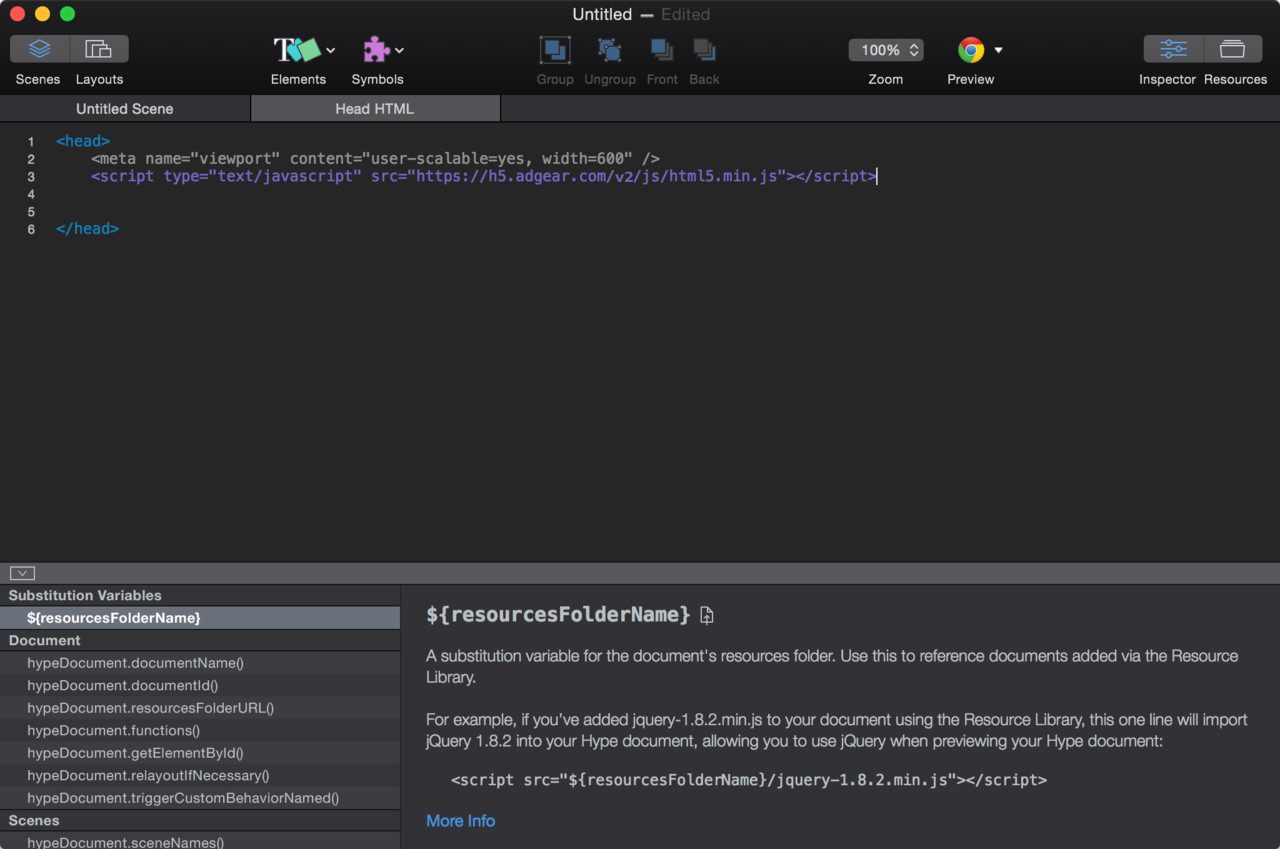
2. From the code view, simply add the AdGear HTML5 API JavaScript next to the `<meta>` tag or before the `</head>` closing tag.
**Code Snippet**
```
```
### Click Button
1. Click **Elements** and select the **Rectangle** tool. Resize and edit as needed.
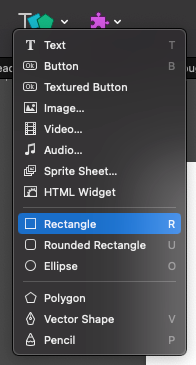
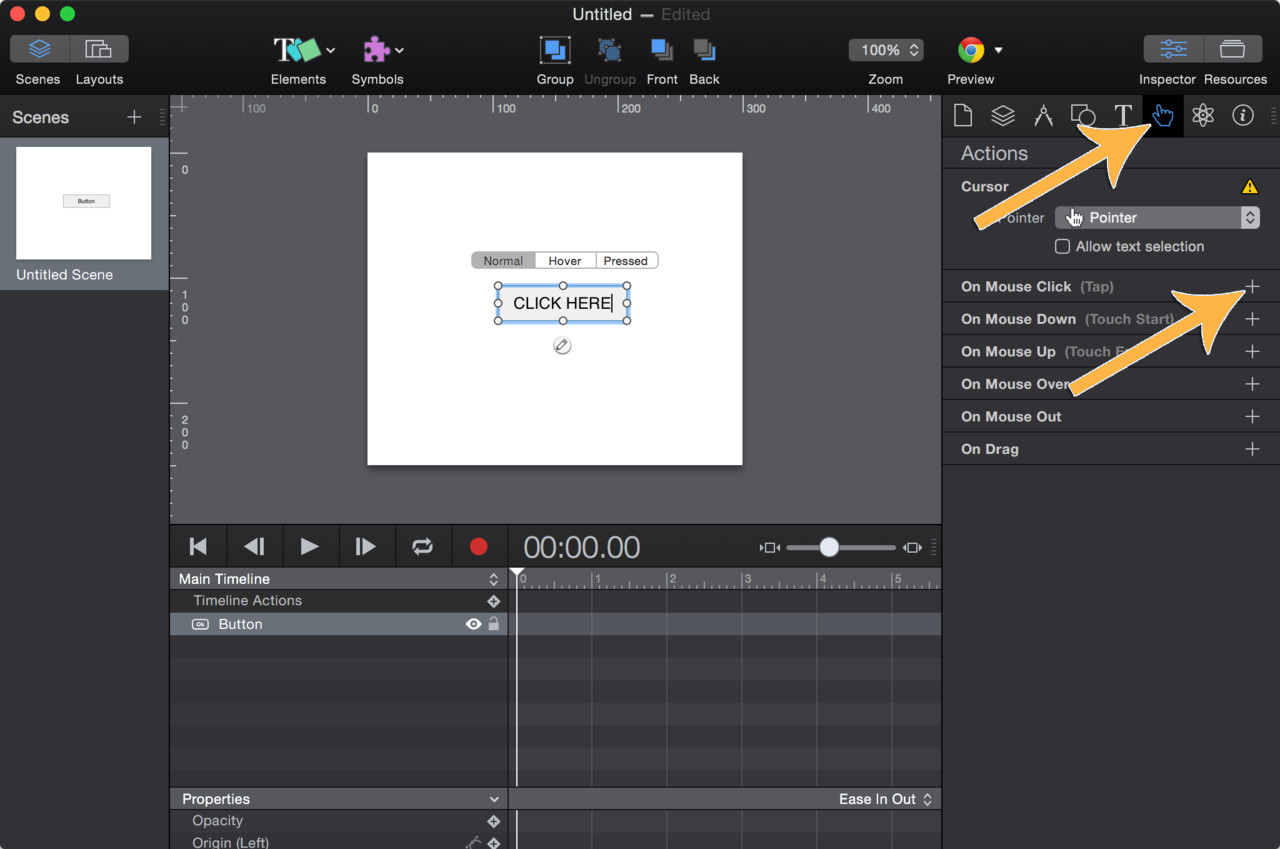
2. Select your click button on the scene.
1. On the right panel, click the **Actions** icon.
2. Then, click the **+** icon next to **On Mouse Click (Tap)**.
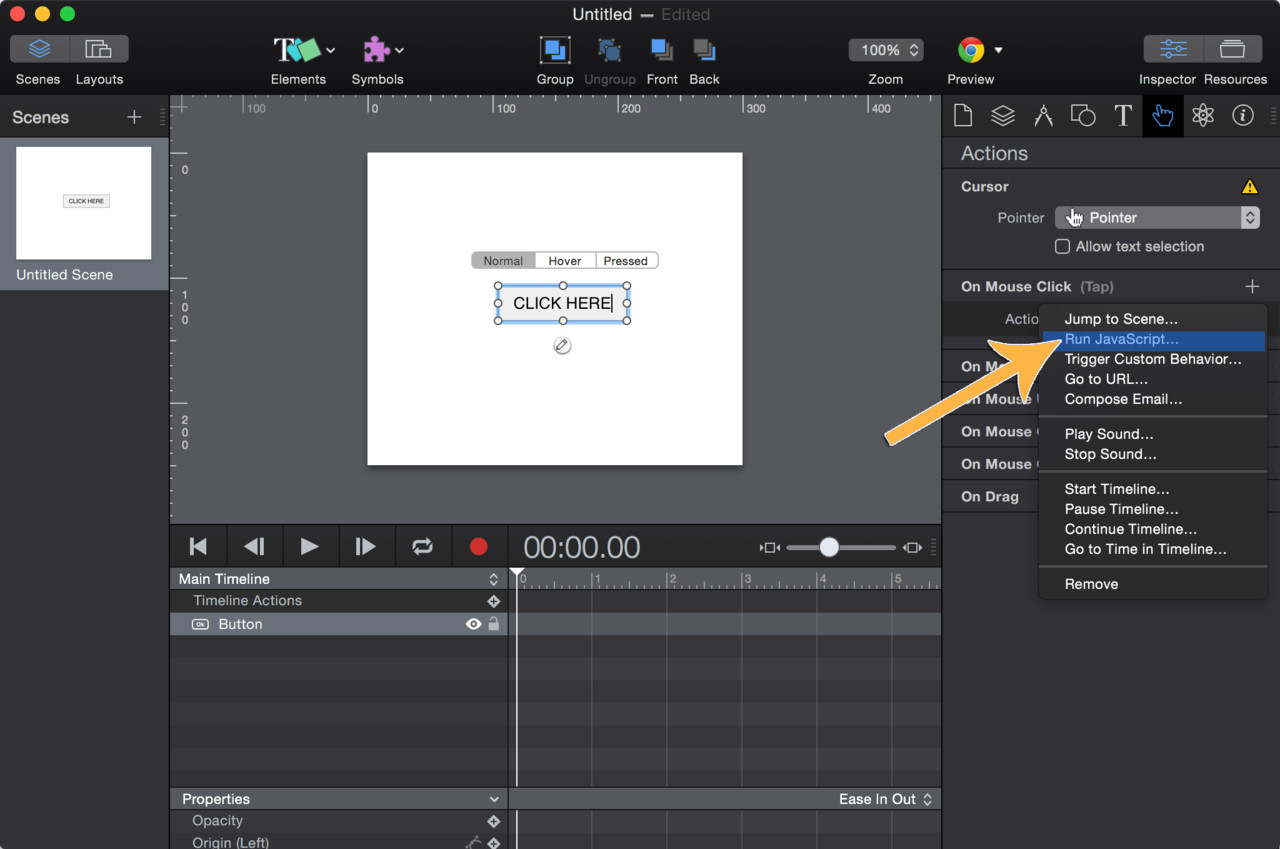
3. In the **Actions** dropdown, select **Run JavaScript...**
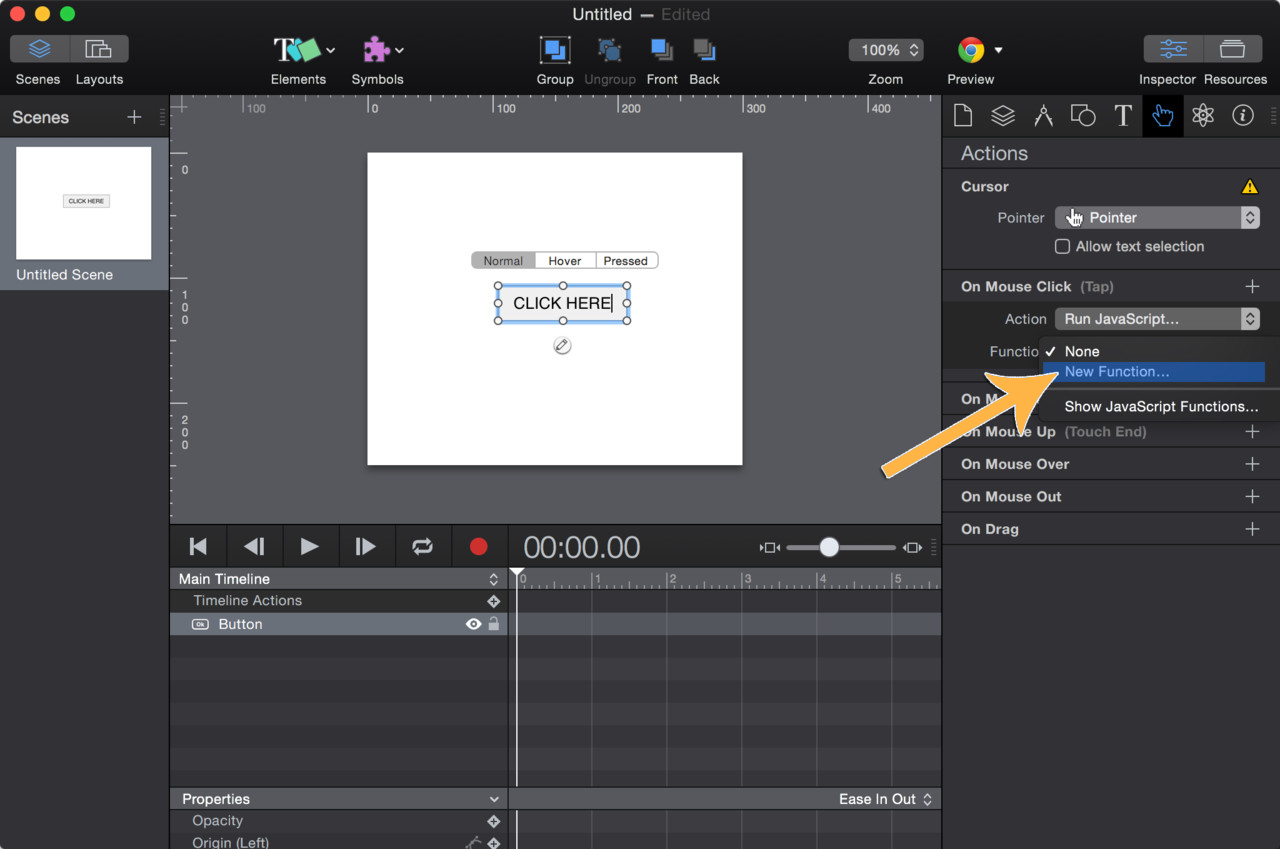
4. A new **Function** dropdown will appear. In that dropdown, select **New Function...**
1. If you’ve loaded the template, you can select the pre-defined function named *clickThrough*.
5. In the code view, change the name of the function to something meaningful, like *clickThrough*.
6. Inside this function, call the `AdGear clickThrough` function with the click name (ex: `clickTAG`).
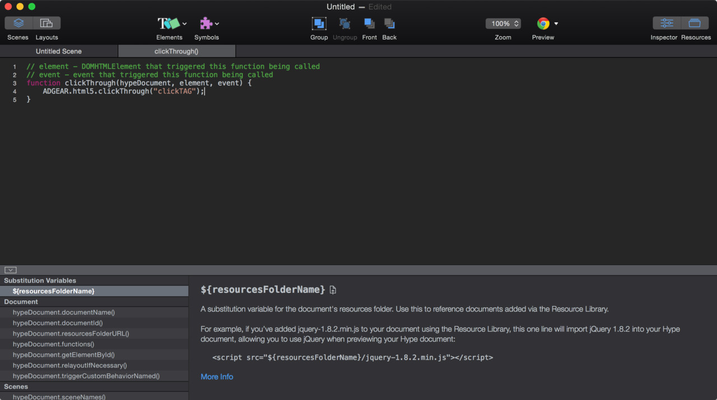
**Code Snippet**
```
ADGEAR.html5.clickThrough("clickTAG")
```
## Complete the code
See [HTML5 Javascript Library](/v1/docs/html5-javascript-library) to create more sophisticated ad executions by leveraging the extent of the *AdGear HTML5 JavaScript API*.
Please consider having a look at this document [HTML5 Recommendations](/v1/docs/html5-recommendations) where we provide important tips and best practices to improve your HTML 5.
## Publish
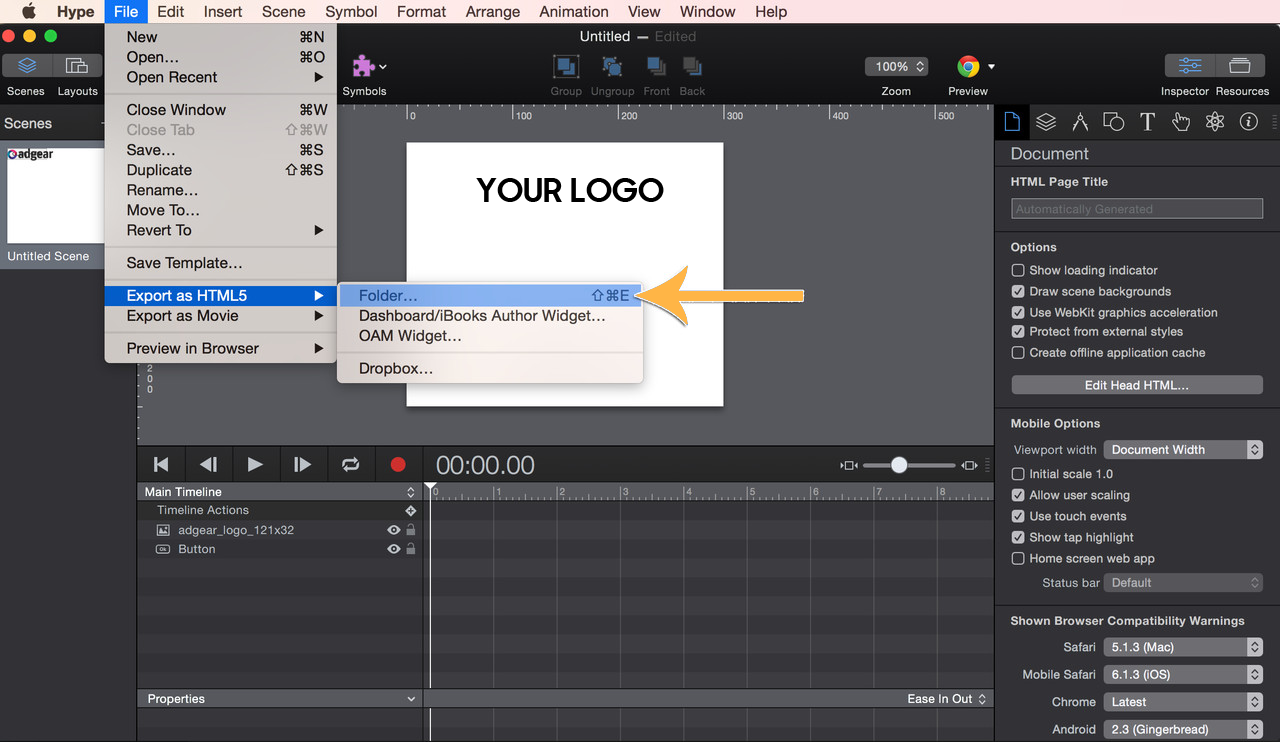
1. In the menu, click **File** then click **Export as HTML5** and select **Folder...**
2. Make sure these 2 checkboxes are ticked: **Also save .html file** and **Create enclosing folder**.
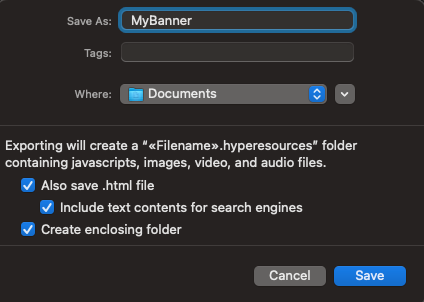
3. Click **Save** to confirm.
4. Go to the folder where your files were exported and rename the HTML file to `index.html`.
5. Zip the folder to be uploaded to Samsung DSP. See [Import HTML5 Creative](/v1/docs/import-html5-creative) for more information.