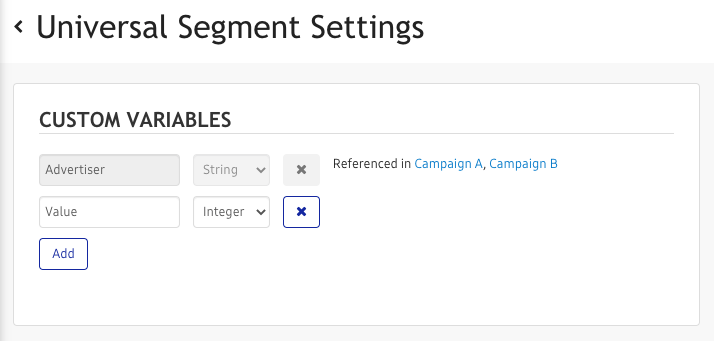
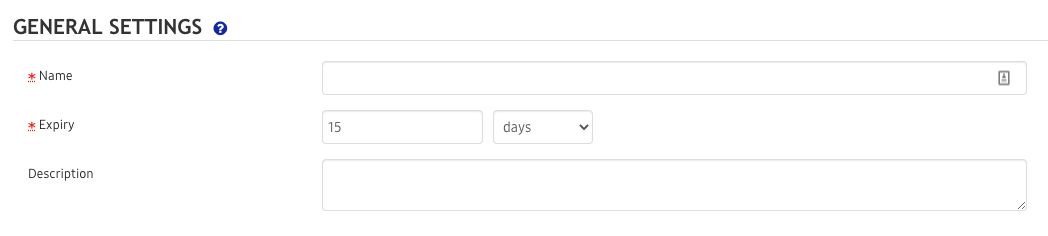
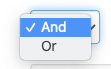
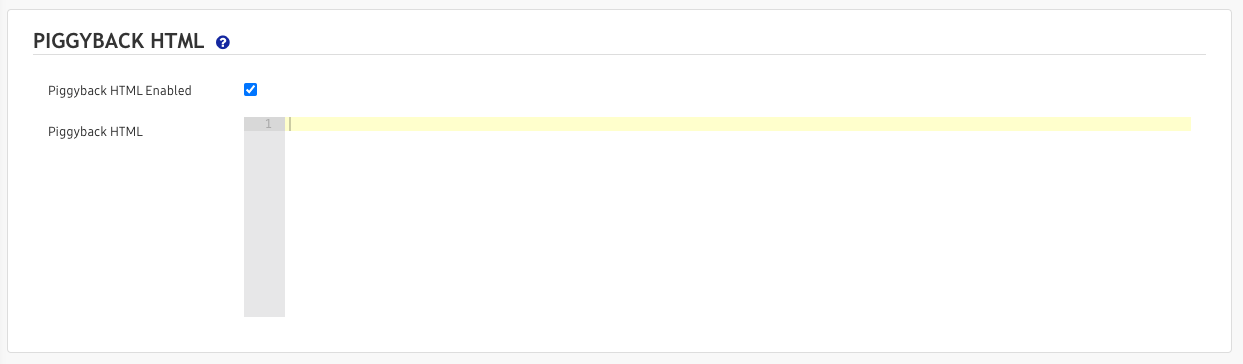
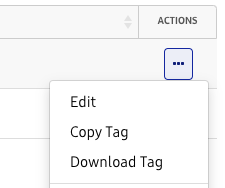
--- title: "Universal Segment" slug: "universal-segment" updated: 2026-08-27T17:23:04Z published: 2026-08-27T17:23:04Z canonical: "help.dsp.samsungads.com/universal-segment" --- > ## Documentation Index > Fetch the complete documentation index at: https://help.dsp.samsungads.com/llms.txt > Use this file to discover all available pages before exploring further. # Universal Segment The *Universal* Segment is a JavaScript tag. This tag is able to detect the URL of the page it is implemented on, and the URL detection capability can be leveraged to create different segments based on the URL. Additional custom variables can be leveraged to extract additional data from the website to build more granular segments. Each segment will share the same JavaScript tag for the entire buyer account. ## Universal segment settings When using *Universal* segment, you can configure custom variables that can be then used in your segment to determine if the user belongs to that segment based on information provided by the website. Those variables need to be set up beforehand, so you can select them in the conditions section of your *Universal* segment. 1. In the left menu, click **Data** and select **Segments**. 2. In the upper right-hand corner, click **Universal Segment Settings**. ![image (2).png](https://cdn.document360.io/287afab9-a086-4024-a782-6cbdb167f005/Images/Documentation/image%20(2)(3).png?sv=2026-02-06&spr=https&st=2026-11-10T17%3A02%3A31Z&se=2026-11-10T18%3A02%3A31Z&sr=c&sp=r&sig=3Mi5orE2KHiNdsQkOsaD1BkctvBYKo7%2BUETyHyix6ug%3D) There are 2 types of custom variables: ![](https://cdn.document360.io/287afab9-a086-4024-a782-6cbdb167f005/Images/Documentation/image-1687874244192.png?sv=2026-02-06&spr=https&st=2026-11-10T17%3A02%3A31Z&se=2026-11-10T18%3A02%3A31Z&sr=c&sp=r&sig=3Mi5orE2KHiNdsQkOsaD1BkctvBYKo7%2BUETyHyix6ug%3D) - **String**: Using this type, Samsung DSP will expect the value passed to that variable to contain any sequence of characters. Ex: Hello World. Targeting rules for strings will contain operators such as "contains", "starts with", or "ends with". - **Integer**: Using this type, Samsung DSP will expect the value passed to that variable to be a whole number, without fraction/decimals. Ex: 10. Targeting rules for integers will contain operators such as "greater than" or "less than". Once set up, you can now create a universal segment using the custom variables you defined. ## Create a Universal Segment - In the left menu, click **Data** and select **Segments**. - In the upper right-hand corner, click **+New Segment** and select **Universal Segment**. - Fill in out the following form and click **Create** to finish. ![](https://cdn.document360.io/287afab9-a086-4024-a782-6cbdb167f005/Images/Documentation/image-1687874302077.png?sv=2026-02-06&spr=https&st=2026-11-10T17%3A02%3A31Z&se=2026-11-10T18%3A02%3A31Z&sr=c&sp=r&sig=3Mi5orE2KHiNdsQkOsaD1BkctvBYKo7%2BUETyHyix6ug%3D) **General Settings** - **Name**: Enter a name for your segment. - **Expiry**: Enter an expiry time for the retargeting. Ex: 15 days, means that if we don’t see that user again after 15 days, that user will no longer be part of that segment. - **Description**: Enter a description of the segment. - **Universal Tag conditions**: This is where you set up the conditions for the segment to be triggered. By default, only the URL of the page where the segment is implemented would be available. You can choose different matching conditions on the URL, such as contains, exact match, etc. Once you’ve set up custom variables, those variables will also appear as conditions, and the matching conditions will depend on the type of custom variables you have set up. ![](https://cdn.document360.io/287afab9-a086-4024-a782-6cbdb167f005/Images/Documentation/image-1687874345379.png?sv=2026-02-06&spr=https&st=2026-11-10T17%3A02%3A31Z&se=2026-11-10T18%3A02%3A31Z&sr=c&sp=r&sig=3Mi5orE2KHiNdsQkOsaD1BkctvBYKo7%2BUETyHyix6ug%3D) ![](https://cdn.document360.io/287afab9-a086-4024-a782-6cbdb167f005/Images/Documentation/image-1687874351195.png?sv=2026-02-06&spr=https&st=2026-11-10T17%3A02%3A31Z&se=2026-11-10T18%3A02%3A31Z&sr=c&sp=r&sig=3Mi5orE2KHiNdsQkOsaD1BkctvBYKo7%2BUETyHyix6ug%3D) **Piggyback HTML** This is if you want to include HTML/JavaScript code that will also be triggered at the same time as the segment. This would be useful if you want to call other pixels at the same time. ![](https://cdn.document360.io/287afab9-a086-4024-a782-6cbdb167f005/Images/Documentation/image-1687874368698.png?sv=2026-02-06&spr=https&st=2026-11-10T17%3A02%3A31Z&se=2026-11-10T18%3A02%3A31Z&sr=c&sp=r&sig=3Mi5orE2KHiNdsQkOsaD1BkctvBYKo7%2BUETyHyix6ug%3D) In the piggyback HTML field, you can also include the following macros: | Macro | Type | Description | | --- | --- | --- | | __AG_URL__ | string | The URL passed to the universal tag, either manually (in the __AG variable) or automatically. | | __AG_REV__ | number | The revenue number passed to the universal tag (in the __AG variable). | | __AGDATA[name]__ | string or number | Any variable set in the __AGDATA JavaScript variable. Replace name with the name of the variable. | ### Copy/Download a Universal tag - On the segment row, click the three dots located in the *Actions* column: ![](https://cdn.document360.io/287afab9-a086-4024-a782-6cbdb167f005/Images/Documentation/image-1687874453774.png?sv=2026-02-06&spr=https&st=2026-11-10T17%3A02%3A31Z&se=2026-11-10T18%3A02%3A31Z&sr=c&sp=r&sig=3Mi5orE2KHiNdsQkOsaD1BkctvBYKo7%2BUETyHyix6ug%3D) - Select **Copy Tag** to copy the tag in your clipboard. - Select **Download Tag** to download a .txt file containing the pixel/tag. All *Universal* segments will use the same code/tag so you don’t need to copy/download it for each segment. ## Implement a Universal tag The Samsung DSP universal segment tag can be placed directly on a webpage or in your preferred tag manager, such as Adobe Tag Manager or Google Tag Manager. Below is an example of a Universal Segment tag: ``` ``` ### Tag Managers **Click here to expand** | Tag Manager | Type | Implementation Notes | | --- | --- | --- | | Google Tag Manager | Custom HTML | Paste the entire code provided by Samsung DSP. Ex: ``` ``` **NOTE**: This does not apply to the **Custom image** type. | | Google Floodlight | Dynamic tag | Paste the entire code provided by Samsung DSP. Ex: ``` ``` | ### Complete HTML Page Example **Click here to expand** When placing the universal segment tag directly into your web page HTML, it must be between **** and **** HTMLtags. It is recommended to place it near the bottom before the closing **** HTML tag. The __AGDATA JSON object is where you can provide custom information that can then be use to generate the segments in Samsung DSP. Make sure that the custom variables are setup in Samsung DSP first so that the data can be available to build the segments. Here's a really simple example of a universal segment tag on a blank page: ``` Samsung DSP Simple Universal Segment Tag Demo ...content... ``` ### Advanced examples #### Javascript version **Click here to expand** In some cases, you might need to implement the tag as javascript code. See the following example: ``` __AGDATA = { advertiser_name: "Advertiser 1", info_1: 1234 }; var SAMSUNG_DSP_UNIVERSAL_SCRIPT_TAG = document.createElement("script"); SAMSUNG_DSP_UNIVERSAL_SCRIPT_TAG.setAttribute("type", "text/javascript"); SAMSUNG_DSP_UNIVERSAL_SCRIPT_TAG.setAttribute("src", "//cdn.adgrx.com/usegments/xxXXXXXxxxxXXxxxxXXXXxxxxxxxxXX/yY.js"); SAMSUNG_DSP_UNIVERSAL_SCRIPT_TAG.setAttribute("async", "true"); document.getElementsByTagName("body")[0].appendChild(SAMSUNG_DSP_UNIVERSAL_SCRIPT_TAG); ``` #### Implementing the tag on a button **Click here to expand** While the best and more reliable way to call tags or pixels is directly on a page or via a tag manager, it is also possible to call our tag when the user clicks on a button. We highly recommend having the tag directly on the destination page of the button, but if it's not possible to implement a tag on the destination page, here are a few examples of how to call the tag on a button. **Without a redirect or redirect that opens a new tab/window** If clicking the button does not redirect the user to another page or open up a new tab or window (e.g., ), the tag should be called correctly as there is enough time for the browser to execute the javascript and call Samsung Ads DSP servers. ``` button ``` **With a redirect in the same tab/window** If the button redirects the user to another page that loads in the same tab/window, you need to prevent the default redirect temporarily to allow the tag/pixel/segment call to complete prior to the redirection. *Using this technique, there is no guarantee that every tag/pixel/segment that the universal segment tag need to call will be called correctly, including the initial Samsung DSP tag. This is because depending on the connection speed of the user, 1 second might not be enough to call the Samsung DSP server and execute the necessary Javascript. You can change the timeout to a greater value, but there is still no guarantee the script will have time to execute and complete.* ``` button ``` **Alternate code: Using an event listener instead of _onclick _attribute.** ``` button ``` #### Implementing the tag on page load and a button **Click here to expand** Here's an example of an HTML page containing the universal tag, called on page load event as well as on a button click event. ``` Samsung DSP Universal Segment Tag Demo ``` ### Data Parameters #### Override URL By default, the URL of the page is automatically detected by the universal segment tag. However, you can optionally override that URL. It's useful to override the auto-detection when you know that the universal segment tag is being placed in an IFRAME where it is unable to detect the true/top URL of the page. If you include the universal segment into a Google’s Floodlight tag, it will be inside the Floodlight iframe so it would be important to override the URL detection in this case. To do so, simply create a JSON object called *__AG* and with a key named *url* as shown below. ``` <... rest of universal segment tag goes here or further below ...> ``` Code showing an HTML tree when an iframe is involved ``` Samsung DSP Simple Universal Segment Tag Demo ...content... ``` #### Revenue (conversion) Optionally, it is possible to pass in the "revenue" generated from a conversion into the universal segment tag. This allows Samsung DSP to report on conversion revenue. To do so, simply create a JSON object called *__AG* and with a key named *revenue* as shown below. ``` <... rest of universal segment tag goes here or further below ...> ``` #### Simultaneously Overriding the URL and adding the revenue To do so, ensure that the JSON object has both the *revenue* and *url* key. ``` <... rest of universal segment tag goes here or further below ...> ``` #### Complete HTML Page Example **Click here to expand** Here's an example of a universal segment tag on a blank page: ``` Samsung DSP Simple Universal Segment Tag Demo ...content... ``` ## View Segments Activity (Reporting) - Click the **three dots** and select **Segments** under **Reports** or **Real-Time** section.